Ramblings of a sleep-deprived SAHM, papercrafter, and Independent Stampin' Up! ® Demonstrator.
Showing posts with label MDS. Show all posts
Sunday, 30 November 2014
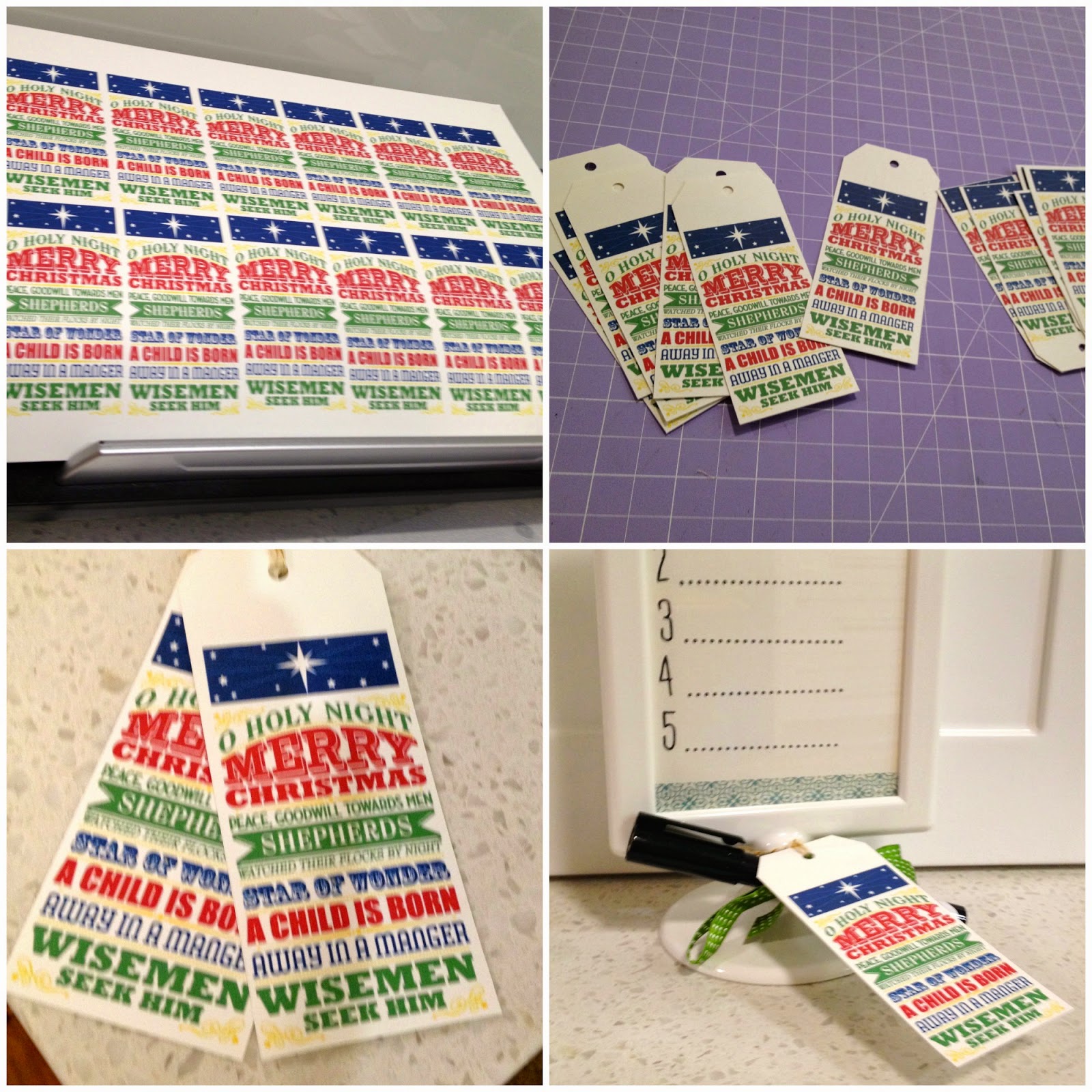
Quick 'n easy tags with My Digital Studio
Tuesday, 29 July 2014
School Fete Fun!
![]() |
| Here's the stall I worked on, with other talented and crafty Mums from school ! |
I also turned my hand to a few canvas creations:
![]() |
| I painted the canvas with black Gesso and then used the Silhouette to cut out the words in white vinyl. |
LOL, the following two were not sold at the Fete because my daughters decided they'd look better hanging in their rooms!
![]() |
| I painted the canvas with Modge Podge and applied the (retired SU!) DSP, then another coast of Modge Prdge and dabbed white Gesso on the edges. The words were cut from vinyl with my Silhouette. |
![]() |
| As above - Modge Podge, white Gesso, retired DSP and Vinyl. |
Monday, 17 February 2014
MDS Hybrid Bookmarks
A friend of mine is a year 1 teacher, and at the start of each school year, he likes to give his students a little "welcome to my class" gift. I made his students a bookmark to add to the package of goodies.
You can make these without an e-cutter, obviously - especially now that we have the Tag Topper Punches I have featured on the blog here recently. However, at the time I made these, I didn't have the punch yet, and I'd just purchased my Silhouette Cameo - so it just made sense to me to try it out, given I had 27 or so to make.
I'll show you two ways of making these bookmarks - one with the Cameo and one without.
1. Without an E-Cutter:
MDS Steps- Go into My Digital Studio, and open up a new document. Make it the size that works with your home printer - A4 size.
Of course, you could make your own images and words for your bookmarks, using the stamps and embellishments you already have in MDS (or for that matter you could just stamp on Whisper White Cardstock). I loved the cute bookmarks in Book Buddies that Stampin' Up! designed in My Digital Studio, so I had to get those.
If you'd like to get it as well, you can get it HERE
Once you've opened your new file, find the bookmarks. They will be separated into background panels, images, and the words.
Then, layer them as you wish like this:
Make sure you use the "group" function when you have all your elements the way you want them, so you can move your bookmarks around without losing bits.
If you like, you can save this project as a .JPEG now, and print it out, and cut it out. I like to even my bookmarks up first, to make it easier to cut them out.
Now, you can print it out, and cut out the bookmarks !
2. With a Silhouette Cameo:
I'm sure the steps are similar with other e-cutters, but I have a Silhouette Cameo, so that's what I know.
First, I cut out a 12 x 12 Crumb Cake page of bookmarks:
I'm pretty sure the bookmark was one of the free shapes that came with my Silhouette or one of the kits. You could easily just make rectangles of course.
I was able to fit 7 bookmarks to a 12 x 12 inch page. I saved the full page as a cut file so I can use it again and again.
Here they are, ready to decorate! Usually I like to sponge the edges with Crumb Cake ink, but I didn't bother for these bookmarks.
Now for the Book Buddies images. Don't bother creating your image in MDS and exporting as an SVG file - because only the parts of the image (3 digital stamps) will be exported. This won't be the case with some other stamp sets.
I imported all the elements (.PNG and .SVG) into my Silhouette library. I have the Designer Studio Edition, specifically for this purpose.
I've gone ahead and imported most of the .SVG files in MDS into my Silhouette library already, but you can also import .JPEG and .PNG files.
Here's what it looks like in my Silhouette library:
As you can see, I've already assembled and saved my bookmarks as a printable in my library. Why reinvent the wheel each time?
Once you've assembled (and grouped) your Book Buddies the way you want them, you'll want to send them to your printer to utilise the "Print and Cut" feature. I love this.
First, make sure you select "Registration Marks" because this is how the clever Silhouette will know where the images you printed are on the page.
Then, send it to your printer for printing!
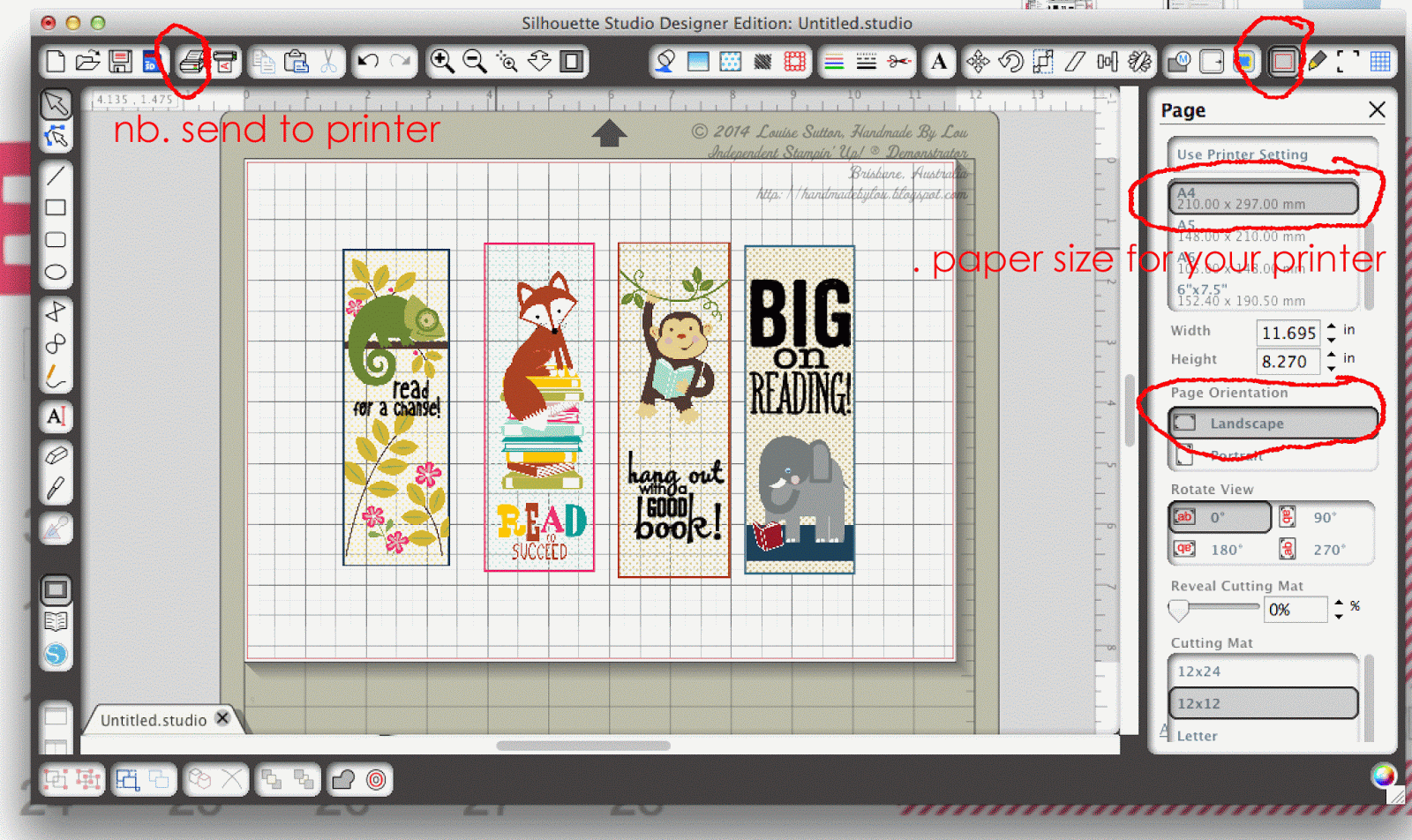
![]() |
| Oops, forgot to show the registration marks on this screen! They should be there as in the previous picture. |
I printed mine on adhesive label paper (Silhouette has their own brand, but I didn't have any of it. I used some I found at Officeworks instead.) but of course I could have used Whisper White card stock and my snail adhesive.
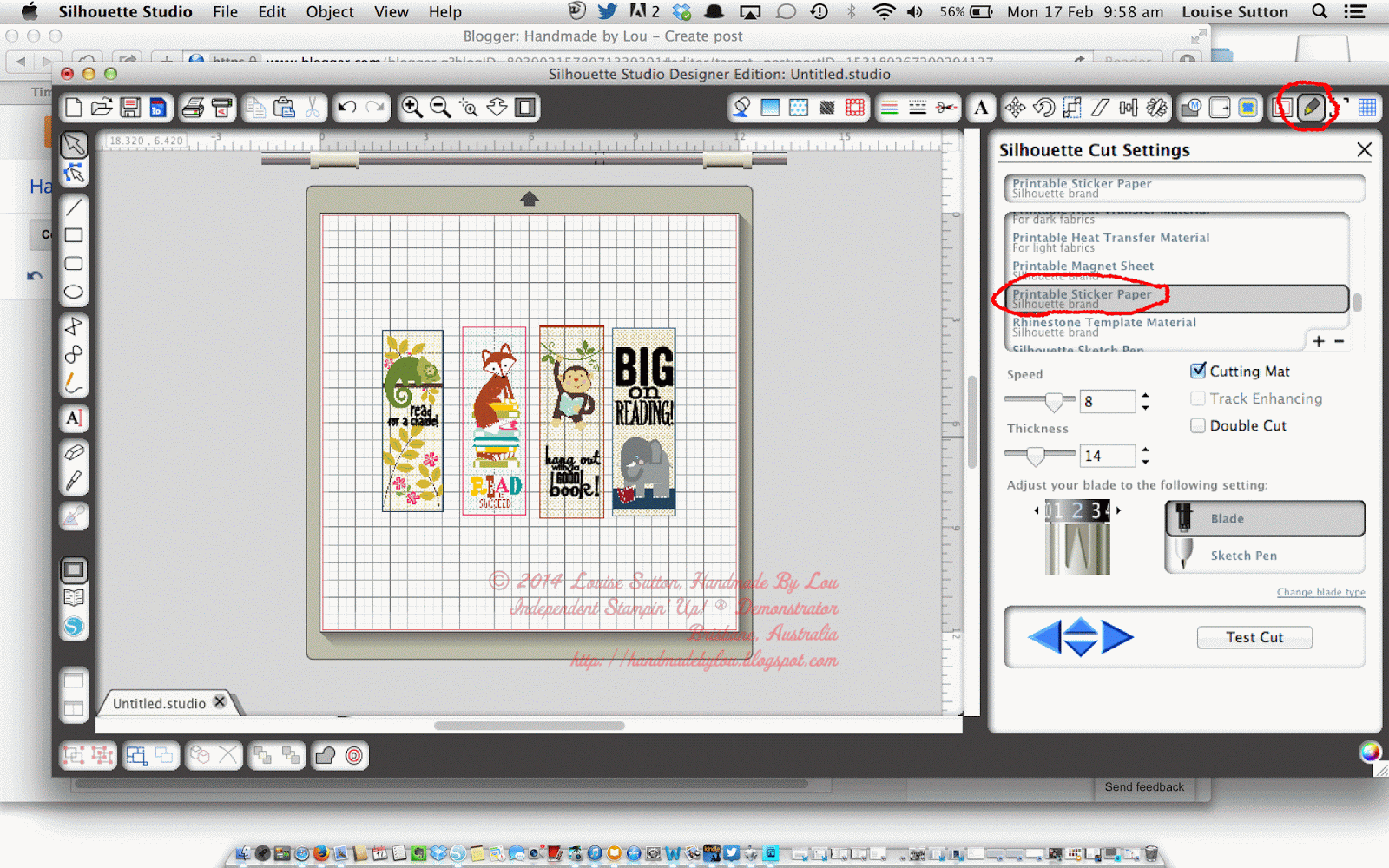
In order for your Silhouette to cut the right lines (in this case, the outside of the Book Buddies panels) you need to tell it what to cut out. To do this, I used the "Trace" feature, as follows:
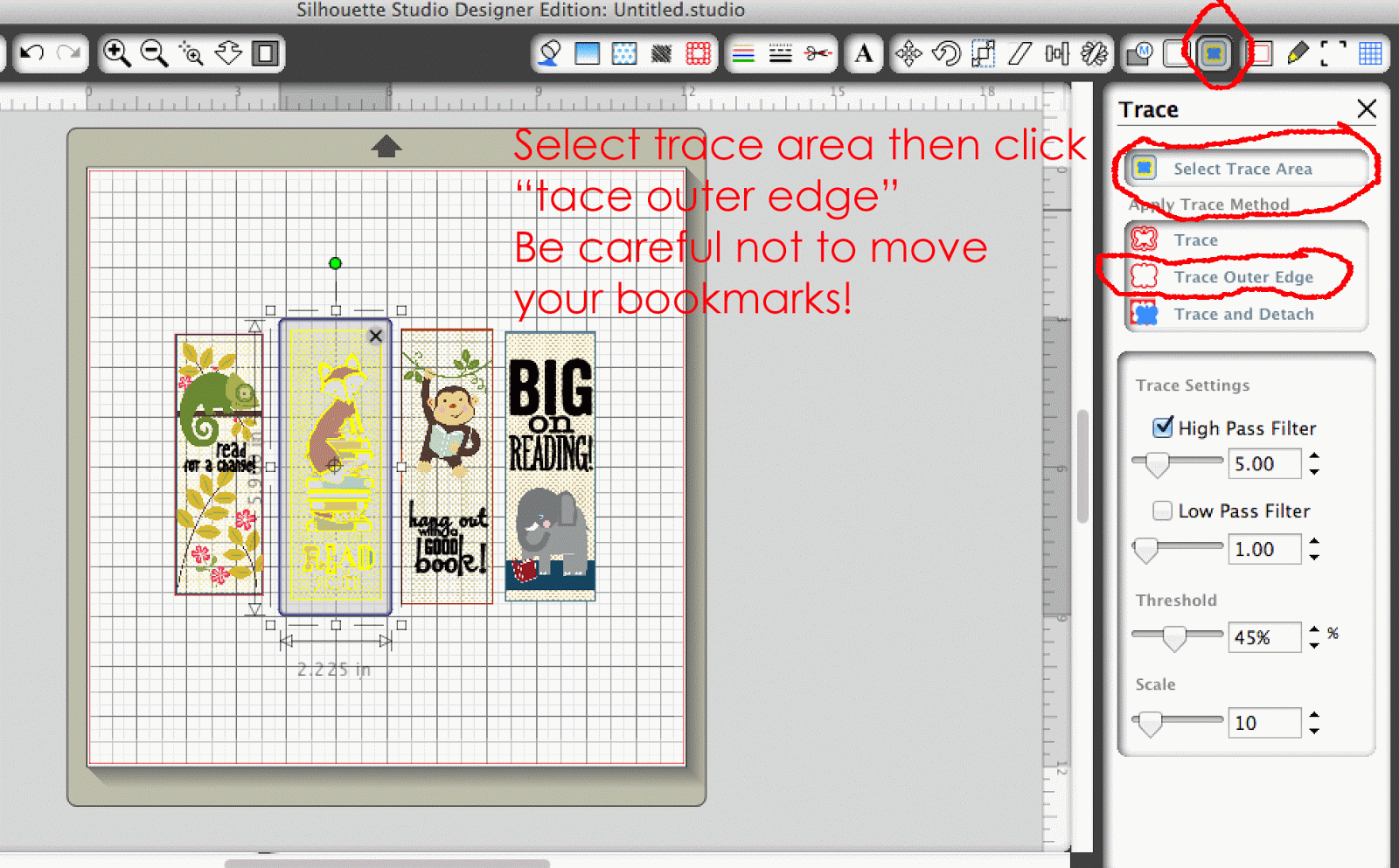
![]() |
| Ugh, "TRACE" not "tace!" |
Load your printed bookmarks back into your Silhouette, making sure the little black square is lined up with the blade (that's how it will "read" the registration marks) and make sure your cut settings are appropriate for your material. For example, the sticker paper I used is thinner than the Silhouette brand sticker paper, so I had to tweak the settings and experiment a little to get it to cut perfectly. I found a blade setting of 1 was just fine.
Then press cut or "send to Silhouette" and let it do the work.
Adhere your printed images onto the bookmarks, decorate with ribbon or twine, and you are done.
I hope this was helpful to anyone using MDS with their Silhouette Cameo. Let me know if you have any questions, and I'll try my best to answer them.
What do you think of my Blog and Facebook Page makeover? I made it in MDS in a few minutes. I needed to freshen things up a little!
Tuesday, 24 December 2013
Merry Christmas from our home to yours.
Aren't my 4 Things precious?
I'm busy today cleaning my house as we are hosting a big Christmas lunch with my inlaws tomorrow. I have excited Things who keep pawing at presents wrapped under the tree, trying to guess what they are.
Two of my lovely downlines, Kath and Michelle, came over last night for an informal "team Meeting" which was really just a catch up before Christmas.
I made them each a calico bag with heat transfer + MDS + my new Silhouette machine, which I forgot to take a picture of. Michelle gave each of us these sweet tubes filled with mini M&M's, and Kath made us earrings, which she wrapped in this gorgeous mini milk carton.
I've also been tinkering with my new Silhouette cameo and vinyl. Here's my first project:
I made it a little crooked ( :-( ) but I still quite like it!
I hope you, dear readers, enjoy a wonderful Christmas and a fabulous New Year!
Sunday, 15 December 2013
MDS Photobook = Easy Xmas
Ever since I started scrapbooking about 7 or 8 years ago, I've made a mini scrapbook for both sets of grandparents for Christmas. In the last couple of years, as I've been pressed for time, I've been making photo book gifts instead.
Even though we don't yet have printing for My Digital Studio in Australia, we do have access to quite a few high quality printing options that are competitively priced.
I spent several hours today making this year's photo book in MDS (I did it on and off throughout the day). This year's book uses the template from the Nobody's Business 12 x 12 Photobook.
I liked the variety of layouts, many with multiple photos (isn't that the point of a photo book?) and the funky bright colours are in right now.
Here are a few of my pages:
I also made a couple of changes - it is pretty easy to customise the templates.
I love this picture of Thing 3, and it works with the bright colours.
Once I finished my book, and saved it as a .JPEG file, I uploaded it to Snapfish (I have used them before and they have a special 40% off that ends tomorrow). If you haven't made a photo book with them before their website is really easy to navigate. They have a number of printing options, and I chose a softcover 20cm x 20 cm book, because it is the most cost effective option for me. You can get them printed in an A4 book or a 30cm x 30cm and plenty of other options. I chose 20cm by 20 cm because although my template photo book in MDS is 12 inch x 12 inch (30.5cm x 30.5cm), I know it will work in the 20cm x 20cm format without losing much.
I uploaded each page as a separate photo, picked the layout (single photo per page, the whole page) and just dragged and dropped my pages until I finished. The only negative is that the softcover 20cm x 20cm book I used only has 20 pages, so I had to drop a couple from my 24 page. Some of the other more expensive options allow you to add more pages, but this one won't. I wanted to keep the cost low as I'm printing it 3 times (one for each set of grandparents plus one for me to keep).
Now it is going to be touch and go whether or not I'll get these books before Christmas (I'm so last minute!) but I'll let you know how they look when they arrive. I hope I didn't make any typos this year!
Let me know if you are interested in using MDS to make a photo book too. :-) Click the "Shop Now" button to go to my online store.
Tuesday, 10 December 2013
MDS - Makes life easy
I'm so glad I have My Digital Studio when it comes to this crazy time of year. Last week, I helped create a beautiful and meaningful Teacher Gift, which I was able to print at home onto Whisper White card stock and frame. The work of minutes!
All I did was open an A4 document in My Digital Studio, and used MDS alphabet stamps for the title, then I opened a text box for each name or word and rotated some of them until I was happy with the look. I was able to use the different fonts installed on my computer (I have lots - some of them are from free sites like dafont.com) for each child's name.
What do you think? If I'd had more time, I might have sent them off to be printed professionally, but they actually worked out very well on my home printer. Thank goodness!
All I did was open an A4 document in My Digital Studio, and used MDS alphabet stamps for the title, then I opened a text box for each name or word and rotated some of them until I was happy with the look. I was able to use the different fonts installed on my computer (I have lots - some of them are from free sites like dafont.com) for each child's name.
![]() |
| This "Subway Art" was made with the names of the children in the class, in bright colours and different fonts. |
![]() |
| This piece was made using words collected from the children to describe their lovely teacher. |
Subscribe to:
Posts (Atom)
Getting closer....
It's nearly that time of year, where the retirement list comes out. That means the in-colours we've loved the past 2 years are leav...
-
Welcome to the ESAD-SU Sale a Bration Blog Hop! This is my first Blog Hop, I'm very excited. You should have arrived from Linda's ...
-
Long time lurker, first time poster for Kristina's Colour Challenge. The colours this week were Old Olive, Baja Breeze, Chocolate Chi...
-
The last (and first!) time I entered this challenge was #37.....oops, time flies! The colours to use are: Baja Breeze, So Saffron, More Must...